How to Make a Passport Photo at Home That Looks Professional
Learn how to take, crop, and print a passport photo at home with the right framing, background, and photo size.
Written by
FreeUtilHub Editorial Team
Review standard
FreeUtilHub Review Process
Updated
June 18, 2026
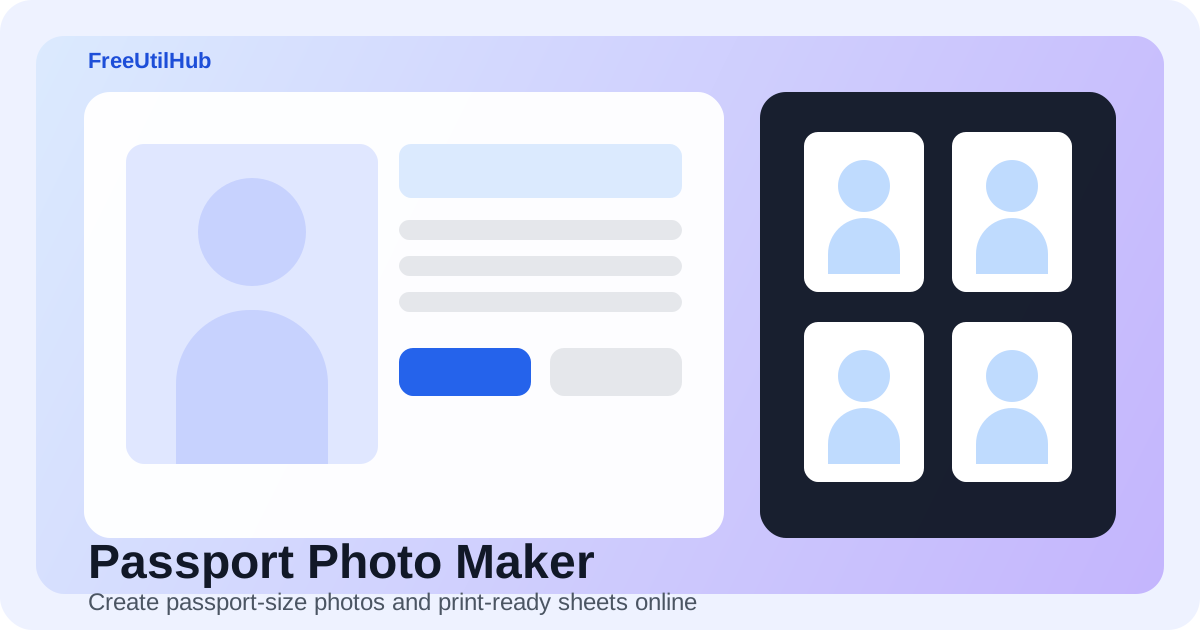
Taking a passport photo at home can save time and money, but only if you get the basics right. A good passport photo needs proper lighting, a plain background, accurate sizing, and clean framing. The easiest workflow is to take a clear portrait first, then use a dedicated passport photo editor to resize and export the final image.
What Makes a Good Passport Photo?
Most passport and visa applications ask for a recent color photo with a neutral expression, direct eye contact, and a plain background. Even though each country has slightly different rules, the core standards are similar.
- Use even lighting: Natural light near a window often works best.
- Keep the camera level: The lens should be roughly at eye height.
- Face forward: Avoid tilted heads or side angles.
- Use a clean background: White or very light neutral backgrounds are usually safest.
How to Take the Original Photo
Stand a short distance away from the wall so shadows fall behind you rather than on the background. Use the rear camera on a phone or a regular camera if possible, and make sure the entire head and upper shoulders are visible in the frame. Do not crop too tightly when taking the shot because you can always trim it later.
How to Resize the Photo Correctly
Once you have a good portrait, upload it to our Passport Photo Maker. The tool lets you choose common passport and visa sizes such as 2x2 inch, 35x45 mm, 50x70 mm, and 51x51 mm. You can then zoom and reposition the image until the head sits correctly inside the guide frame.
Single Download vs Print Sheet
Many users only need one digital passport photo for an online application, but print shops often ask for multiple copies on one sheet. That is why our tool includes both a single photo export and a 6 x 4 inch print sheet layout. The print sheet automatically repeats your final image so it is ready for home printing or photo lab printing.
Common Passport Photo Mistakes
- Heavy shadows: These can make the face look uneven.
- Low resolution: Blurry images may be rejected or print poorly.
- Bad framing: Too much empty space or a face that is too large can cause issues.
- Wrong size: A good photo can still fail if the dimensions do not match the official requirement.
- Strong filters: Avoid beauty filters, intense contrast, or color effects.
Before You Submit
Always compare your finished photo with the latest rules from the passport office, embassy, or visa center. Some countries specify exact head height, background tone, paper finish, or clothing restrictions. A quick final check can prevent delays and resubmissions.
Final Thoughts
If you already have a clear portrait, making a passport photo online is much easier than most people expect. Use our free Passport Photo Maker to crop your image, switch between common passport sizes, and download a ready-to-print result in minutes.
Editorial note
This article is published to explain a practical workflow related to tools available on FreeUtilHub.
We aim to keep articles practical, accurate, and tied to real site workflows. For more information, read our Editorial Policy, How We Test Tools, or contact us if you believe a page needs a correction.

